Troubleshooting Livestream Lag Issues: 7 Fixes Every Seller Should Know
Frustrated by lag during your live sales streams? These 7 troubleshooting steps tackle the most common causes of livestream lag and how you can fix them on the spot.
Nothing kills a live shopping sale faster than a spinning buffer or choppy, delayed video. If you’re troubleshooting livestream lag issues, you’re far from alone. Streamers and e-commerce merchants everywhere find themselves wrestling with lag, dropped frames, or viewers complaining about buffering at exactly the wrong moment.
Most livestream lag has a handful of clear causes, and practical fixes you can try right now. Here is a troubleshooting checklist that actually works in 2026.
1. Plug Into Ethernet, Don’t Rely on WiFi
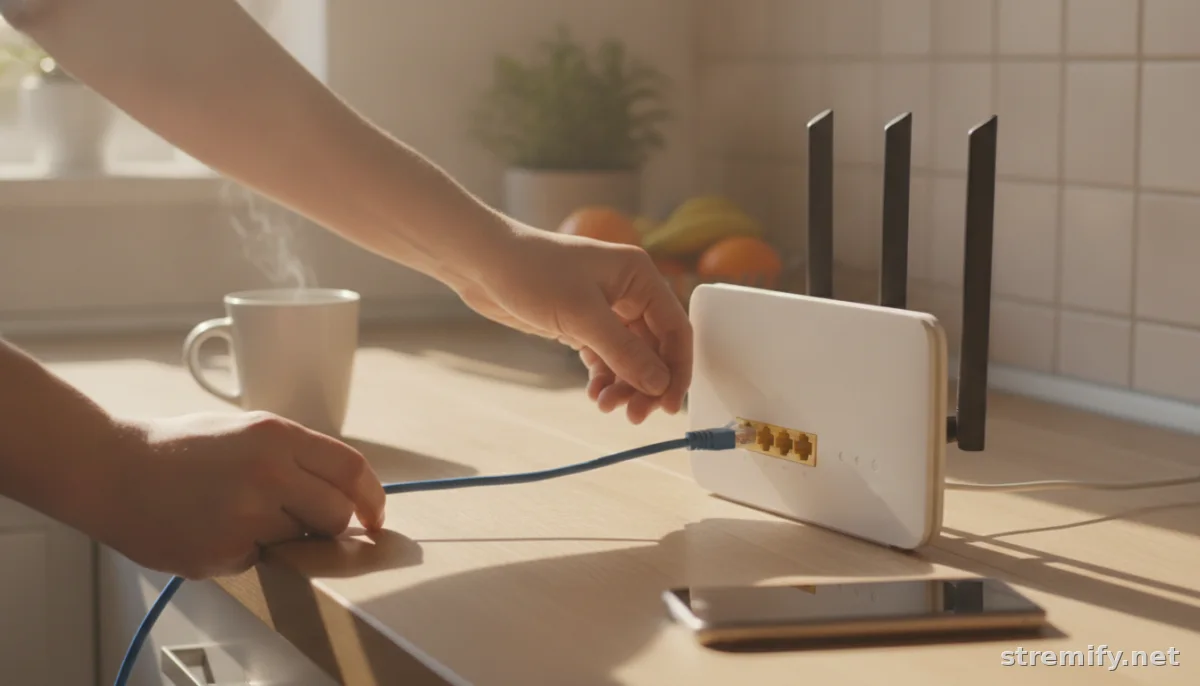
Your wireless connection might feel fast, but it’s vulnerable to interference and sudden slowdowns. Even a small dip can stall your live shopping stream. Plug your streaming device directly into your router using an Ethernet cable to guarantee a steady, reliable connection.1 You’ll notice the difference, especially if multiple people or devices are sharing your WiFi at the same time.2
Test your speed before you go live, but don’t trust the numbers from the first few seconds of a speed test (many ISPs boost your initial speed). What matters is sustained upload speed. Look for a consistent upload rate that matches your streaming settings, ideally at least double your stream’s bitrate for safety.
2. Adjust Resolution, Frame Rate, and Bitrate
Pushing your stream to 1080p at 60fps might sound appealing, but many viewers’ connections and your own upload speed can’t keep up. If you notice lag or buffering, dial it back. Start with 720p at 30fps and see if stability improves. Lowering the bitrate can also help, set it to match your reliable upload speed, not your internet’s theoretical maximum.3
Here’s how the key settings compare:
| Setting | High | Recommended | Low |
|---|---|---|---|
| Resolution | 1920x1080 | 1280x720 | 854x480 |
| Frame Rate | 60 fps | 30 fps | 24 fps |
| Bitrate | 6,000 Kbps+ | 2,500-4,000 Kbps | 1,000-1,500 Kbps |
Most platforms and devices perform best with the recommended settings if you want smooth, watchable streams.
3. Close Background Apps and Browser Tabs
Streaming software uses significant CPU and bandwidth. If your computer is running extra browser tabs, games, or background downloads, your stream will stutter. Before you go live, close everything you don’t need, including cloud sync tools, web apps, and even notifications that can eat memory or CPU cycles.
Some streamers even run their e-commerce backend on another device or use external drives for resource-heavy applications, keeping the main streaming device focused on the broadcast.
4. Check Your Streaming Platform’s Requirements
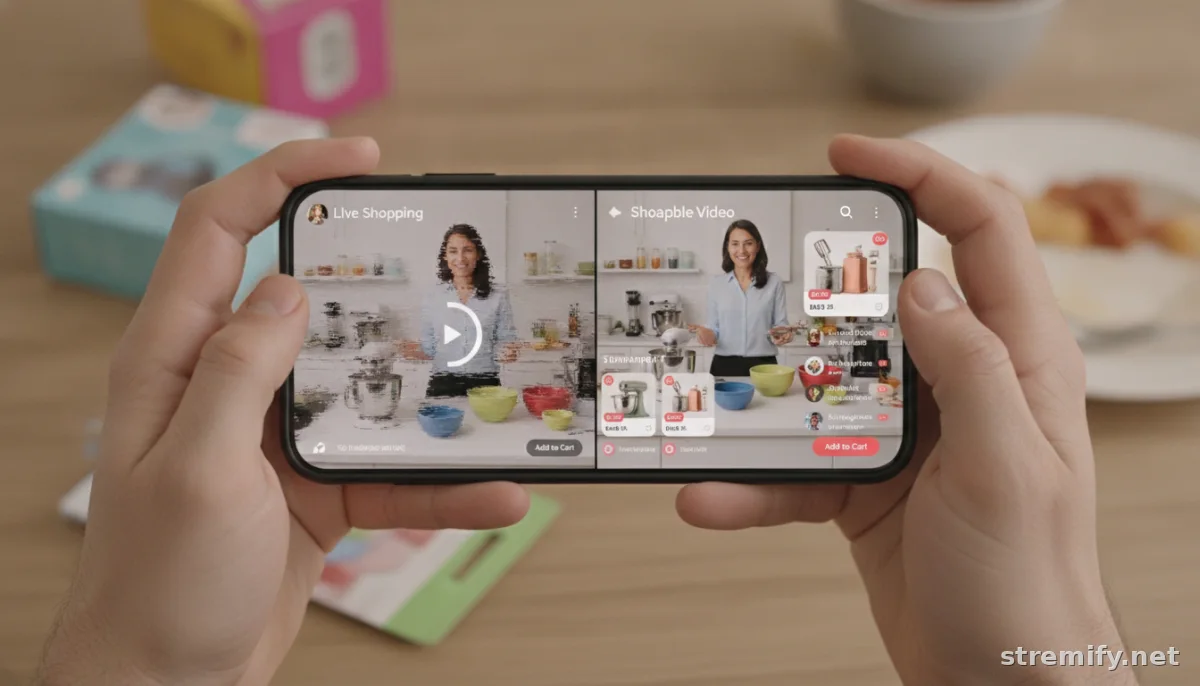
Each platform, TikTok, Facebook, YouTube, Twitch, has its own preferred stream settings. If your encoder’s output doesn’t match, you risk lag or dropped frames. Double-check the guidelines for the platform you’re streaming to, and match your resolution, bitrate, and codec settings accordingly. For example, YouTube and Facebook both recommend the H.264 codec and a keyframe interval of 2 seconds for most live streams.
Some all-in-one live shopping tools, like Stremify, simplify platform output settings and help you design shoppable streams that adapt to each platform’s requirements automatically. That reduces the risk of misconfiguration causing lag. In our experience running live shopping campaigns, broadcasting to multiple platforms at once is now standard, and a single campaign can meet viewers where they already watch.
5. Monitor CPU Usage and Streaming Software Health
If your CPU is overwhelmed, your stream will lag, even with excellent internet. Most streaming tools (like OBS, Streamlabs, or native browser platforms) show your CPU load and dropped or skipped frames. Keep your CPU usage below 70 percent while streaming. If it creeps higher, lower your stream settings or upgrade your hardware.
Regularly update your streaming software to access the latest performance improvements and bug fixes. Outdated software is a sneaky source of lag.
6. Clear App and Browser Cache
Bogged-down browsers and bloated app caches can slow live streams, especially if you’re using a web-based platform. Clear your browser and app cache before big live events to prevent laggy behavior. If you’re streaming from a smart device or using web-based production tools, this step alone can resolve annoying slowdowns.4
After clearing the cache, restart your app or browser for a completely fresh session, with no old data hanging around to slow things down.
7. Test Everything with a Private Stream
Every livestream environment is unique. After making changes, do a private stream first. Most platforms let you stream privately or to a test account. Watch for dropped frames, lag, or audio sync problems. If a problem pops up, you can tweak settings without risking sales or audience engagement.
After each stream, review analytics and chat logs for feedback. Small adjustments between streams lead to a much smoother experience next time.
Lag never has perfect timing, but with these troubleshooting steps, you’ll be ready for most issues before your next live sale. Stremify’s platform lets you import products and stream to TikTok, Instagram, Facebook, YouTube, and Twitch, adapting to each platform’s quirks. Since you only pay as you go with credits, you’re never locked into paying for laggy downtime. Try a test campaign and see how smooth your next stream can be.
Frequently asked questions
Why does my livestream lag even with fast internet?
Other factors beyond your internet speed cause lag: high CPU usage, overloaded WiFi, mismatched stream settings, or software conflicts. Wired Ethernet, the right settings, and closing background apps often help fix lag even on fast connections.
How can I reduce buffering issues for my viewers?
Lower your stream’s resolution and bitrate, use a wired Ethernet connection, and check that your upload speed matches your settings. Also, match your encoder settings to your platform’s recommendations to avoid unnecessary buffering.
Which settings should I use to avoid livestream lag?
For stable streams, start with 1280x720 resolution at 30fps and a bitrate of 2,500 to 4,000 Kbps. These settings balance quality and reliability for most audiences and platforms. Test different settings based on your actual internet speeds.
Should I clear my app or browser cache before a livestream?
Yes, clearing your cache helps prevent lag, slow responsiveness, and playback glitches, especially if you stream through a browser or web-based platform. It’s a quick fix and can improve stream performance immediately.
What’s the best way to test my stream for lag before going live?
Most platforms let you stream privately or to a test account. Run a private stream, monitor for lag, buffering, or audio issues, and tweak your settings before your audience sees anything. It’s the safest way to troubleshoot streaming issues.